

Last updated: June 17, 2026 | Read time: 12 min | Category: Productivity & Business
If you are a freelancer or solopreneur trying to use Notion AI without spending $20 per month on the Business plan, this guide is for you.
Notion AI is one of the most useful productivity features added to Notion in recent years — but here is the catch: as of 2026, full AI access is locked behind the Business plan at $20 per user per month (or $16 per month billed annually). Free and Plus plan users only get a limited trial that runs out fast.
The good news? You can still get real value from Notion AI without paying — if you know exactly how the free tier works, where the limits are, and what workarounds exist.
We spent 2 weeks testing every free feature, burning through trial credits, and documenting what actually works. Here is everything we learned.
See our complete free AI tools rankings for a broader look across every category.
Table of Contents
What You Get on Notion’s Free Plan (2026)
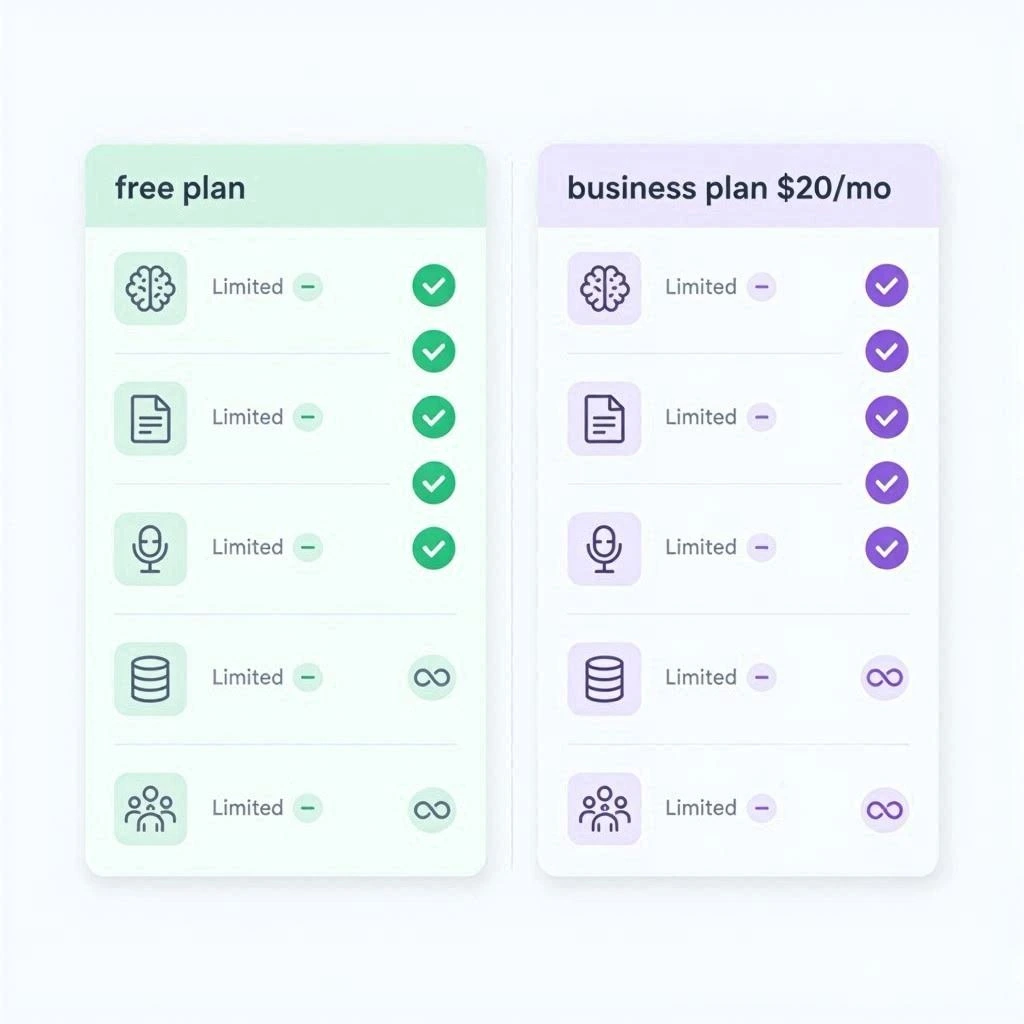
Notion’s free plan is genuinely generous for a workspace tool — but the AI portion is heavily restricted. Here is the exact breakdown:
Table
| Feature | Free Plan | Plus ($10/mo) | Business ($20/mo) |
|---|---|---|---|
| Unlimited pages & blocks | Yes | Yes | Yes |
| Basic collaboration | Up to 10 guests | Unlimited guests | Unlimited guests |
| File uploads | 5MB per file | Unlimited | Unlimited |
| Page history | 7 days | 30 days | 90 days |
| Notion AI responses | ~20-40 trial only | Trial only | Unlimited |
| AI meeting notes | No | No | Yes |
| Custom AI agents | No | No | Yes |
| Enterprise search | No | No | Yes |
Key takeaway: The free plan gives you a fully functional workspace, but AI is essentially a demo. Once your trial credits run out, the AI button stops working.
How to Access Notion AI on the Free Plan
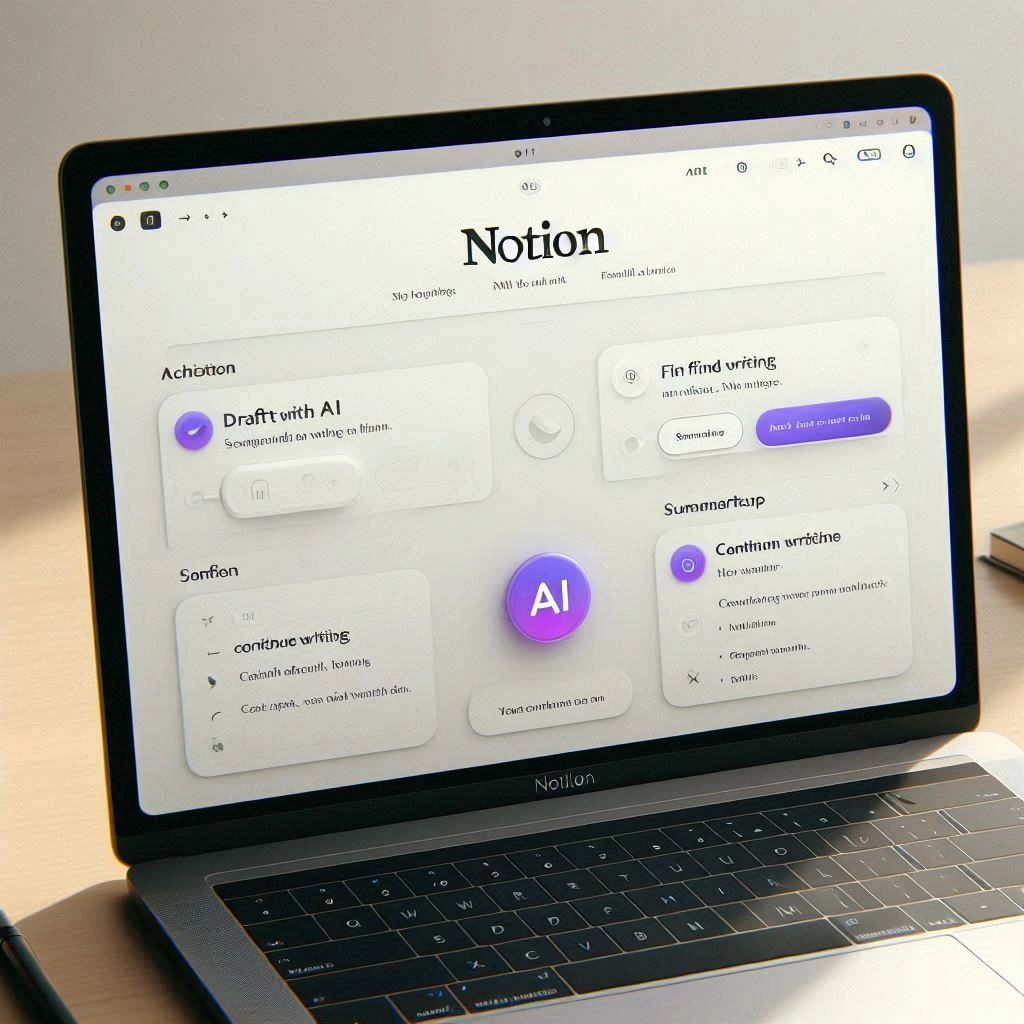
If you just created a free Notion account, here is how to find and use your AI credits:
Method 1: The Slash Command
Type /AI on any new line in a Notion page. This opens the AI menu with options like:
- Draft with AI — generate content from a prompt
- Summarize — condense long text
- Continue writing — expand on existing content
- Find action items — extract tasks from meeting notes
Method 2: The Space Bar Shortcut
Press Space on a new line to activate the AI inline assistant. This is the fastest way to access AI while writing.
Method 3: Highlight Text + “Ask AI”
Select any text on a page, and an “Ask AI” button appears in the floating toolbar. Use this to:
- Rewrite selected text
- Make it shorter or longer
- Change tone (professional, casual, persuasive)
- Translate to another language
Method 4: Keyboard Shortcut
Press Cmd+K (Mac) or Ctrl+K (Windows) to open the unified AI search panel. This lets you ask questions across your workspace — but only if you have AI credits remaining.
Important: On the free plan, these features work until your trial credits are exhausted. After that, the AI menu still appears but returns an “Upgrade to Business” message.
Step-by-Step: Maximizing Your Free AI Credits

You have approximately 20-40 AI responses on a free account. Here is how to use them for maximum impact:
Step 1: Prioritize High-Value Tasks
Do not waste credits on simple writing. Use them for:
- Summarizing 5,000+ word documents
- Generating project timelines from vague briefs
- Extracting action items from long meeting notes
- Creating database templates from scratch
Step 2: Batch Your AI Requests
Instead of asking 5 small questions, ask 1 comprehensive question. For example:
Inefficient (uses 5 credits):
- “Write a project brief”
- “Add a timeline”
- “List the risks”
- “Suggest team roles”
- “Create a budget outline”
Efficient (uses 1 credit):
- “Write a complete project brief including timeline, risks, team roles, and budget outline for a website redesign project”
Step 3: Save AI-Generated Content as Templates
Once you get a good AI output, save it as a Notion template. You can reuse the structure infinitely without burning more AI credits.
How to save a template:
- Create the page with AI-generated content
- Click the … menu in the top right
- Select “Duplicate” to create a copy
- Or use Notion’s native “Templates” feature to save it to your workspace
Step 4: Use AI for Structure, Not Content
AI is best at creating frameworks, not final copy. Use your credits to generate:
- Project outlines and structures
- Meeting note templates
- Database schemas with properties
- Content calendars with categories
Then fill in the details yourself. This stretches 20 credits into weeks of usable output.
7 Smart Workarounds to Use Notion AI for Free

Once your trial credits run out, here are legitimate ways to keep using AI-powered productivity in Notion without paying:
Workaround 1: Combine Notion + ChatGPT Free
Notion is the best workspace. ChatGPT has the best free AI. Use both:
- Draft content in ChatGPT (free tier with daily limits)
- Copy-paste into Notion for organization, databases, and collaboration
- Use Notion’s native features (formulas, relations, rollups) to automate without AI
This combo gives you 90% of the functionality at $0.
Workaround 2: Use Notion’s Pre-Built Templates
Notion’s template gallery has thousands of community-created templates with pre-built structures. Many include:
- Pre-formatted project management systems
- Content calendars with formulas
- CRM databases with relations
- Habit trackers with automated calculations
Where to find them: Templates button in the left sidebar — Browse by category
These templates replicate AI-generated structures without using any AI credits.
Workaround 3: Leverage Notion Formulas (The Hidden AI)
Notion’s formula property is incredibly powerful and completely free. You can:
- Auto-calculate deadlines based on start dates
- Create progress bars from checkboxes
- Generate dynamic status labels
- Build automated priority scoring
Example formula for a task database:
plain
if(prop("Done"), "Complete", if(dateBetween(prop("Due"), now(), "days") < 0, "Overdue", if(dateBetween(prop("Due"), now(), "days") < 3, "Due Soon", "On Track")))This creates an auto-updating status column — no AI needed.
Workaround 4: Use the Notion Web Clipper + Free AI Summarizers
- Clip articles to Notion using the free Web Clipper browser extension
- Summarize them with free tools like:
- ChatGPT (paste the text)
- Perplexity AI (free, with citations)
- Claude (free tier, excellent for long documents)
- Store summaries back in Notion
This gives you an AI-powered knowledge base without paying for Notion AI.
Workaround 5: Create Multiple Workspaces (With Caution)
Each new Notion workspace gets its own AI trial. However:
- This violates Notion’s Terms of Service if done abusively
- Workspaces cannot be easily merged later
- A legitimate use case: separate personal and client workspaces
Better approach: Use one workspace and maximize free features instead of gaming the system.
Workaround 6: Use Free AI Browser Extensions
Several free Chrome extensions add AI functionality to Notion:
- Grammarly (free) — AI writing assistance in Notion pages
- Merlin AI (free tier) — summarize any page with one click
- Glasp (free) — AI highlights and notes on web content you clip to Notion
These extend your workspace with external AI without upgrading Notion.
Workaround 7: Request the Notion Education Plan
If you are a student, teacher, or have access to a .edu email:
- Notion offers free Plus plans for education
- This does not include AI, but gives you unlimited file uploads and 30-day history
- Some institutions negotiate AI access as part of enterprise deals
What You CANNOT Do on the Free Plan
Be realistic about these hard limits:
Table
| Feature | Why It Is Blocked | Workaround |
|---|---|---|
| Unlimited AI responses | Requires Business plan | Use ChatGPT free + copy-paste |
| AI meeting notes | Business-only feature | Use Otter.ai free (300 min/month) |
| Custom AI agents | Consumes Notion credits | Use ChatGPT custom GPTs (free) |
| Enterprise search across workspace | Requires Business plan | Use Notion’s native search + tags |
| AI-generated database insights | Business-only | Use formulas + manual analysis |
| Team-wide AI collaboration | Requires Business plan | Share ChatGPT outputs in Notion |
Notion AI Free vs Paid: Side-by-Side Comparison
Table
| Criteria | Free Plan | Business Plan ($20/mo) | Winner |
|---|---|---|---|
| AI writing quality | Same models (GPT-4, Claude) | Same models | Tie |
| AI response volume | ~20-40 total | Unlimited | Business |
| Meeting notes AI | No | Yes | Business |
| Custom agents | No | Yes | Business |
| Workspace context | Yes (limited) | Yes (full) | Business |
| Value for freelancers | Excellent ($0) | Expensive for solo users | Free |
| Value for teams | Limited | Good at scale | Business |
Verdict for freelancers: The free plan + workarounds covers 80% of needs. Upgrade only if AI is central to your daily workflow.
When Should Freelancers Upgrade to Business?
Consider the $20 per month Business plan only if you meet 3 or more of these criteria:
- You use Notion for 3 or more active clients simultaneously
- You take 5 or more client calls per week that need AI transcription
- You manage large databases (500+ entries) that need AI automation
- You collaborate with a team of 2 or more people who need shared AI
- You spend more than 2 hours per day in Notion
- The time saved by AI equals more than $20 per month in billable hours
Simple math: If AI saves you 2 hours per month and your hourly rate is $30 or more, the Business plan pays for itself.
If you are below these thresholds, stick with the free plan + workarounds.
Best Free Alternatives to Notion AI
If you need AI functionality that Notion’s free plan cannot provide, here are the best free alternatives:
Table
| Tool | Free Tier | Best For | Integration with Notion |
|---|---|---|---|
| ChatGPT | GPT-4o with daily limits | General writing, coding, research | Copy-paste |
| Claude | Claude Sonnet with daily limits | Long-form writing, analysis | Copy-paste |
| Perplexity AI | Unlimited basic search | Research with citations | Copy-paste |
| Otter.ai | 300 min/month transcription | Meeting notes | Manual upload |
| Grammarly | Basic grammar + tone | Editing in Notion | Browser extension |
| Copy.ai | 2,000 words/month | Marketing copy | Copy-paste |
Recommended free stack: Notion (workspace) + ChatGPT (general AI) + Perplexity (research) + Otter.ai (meetings)
Frequently Asked Questions
Is Notion AI completely free in 2026? No. Free and Plus plan users receive a limited trial of AI features with approximately 20-40 responses. Full unlimited AI access requires the Business plan at $20 per user per month (or $16 per month billed annually).
How many free AI responses does Notion give? New free accounts receive approximately 20-40 free AI responses as a one-time trial. This is not a monthly allocation — once used, you cannot get more without upgrading.
Can I create multiple free Notion accounts for more AI credits? Technically possible but against Notion’s Terms of Service. A better approach is to use your credits strategically and combine with other free AI tools.
What is the difference between Notion Free and Notion AI? Notion Free is the base workspace (unlimited pages, blocks, collaboration). Notion AI is an add-on feature for writing, summarization, and Q&A. As of 2026, full AI is bundled into the Business plan.
Is Notion AI worth $20 per month for freelancers? For most solo freelancers, no. The free plan + workarounds covers 80% of needs. Upgrade only if AI is central to your daily workflow and saves you more than $20 per month in time.
Can I use Notion AI without a credit card? Yes — the free plan and AI trial require no credit card. You only need payment information if you choose to upgrade to a paid plan.
Does Notion AI work offline? No. Notion AI requires an internet connection. Notion’s offline mode is also limited — you can view cached pages but cannot use AI features or edit databases.
What AI models does Notion AI use? Notion uses a combination of models including GPT-4 (OpenAI) and Claude (Anthropic), with automatic routing based on the task. Users cannot manually select the model.
Final Verdict
Notion AI is genuinely useful — but the 2026 pricing model makes it expensive for solo freelancers. The free trial gives you enough to test the waters, but it is not a sustainable long-term solution for AI-powered productivity.
Our recommendation:
- Start with the free plan and maximize your AI credits strategically
- Use the 7 workarounds above to extend functionality without paying
- Combine Notion with free AI tools (ChatGPT, Perplexity, Claude) for a $0 productivity stack
- Upgrade to Business ($20 per month) only if AI saves you measurable time and money
The freelancers who win in 2026 are not the ones paying for every tool — they are the ones who know how to combine free features into a system that works.
Start with Notion Free + ChatGPT Free. That alone will handle 90% of your AI productivity needs.
At TecDigi, we personally test every tool and pricing tier we recommend. No tool paid to appear on this list. Last updated: June 17, 2026.
Related Articles
- Best Free AI Tools for Freelancers in 2026 (Tested & Ranked)
- ChatGPT vs Claude vs Gemini: Which Free AI Tool is Best in 2026?
- Best Free AI Writing Tools for Bloggers in 2026
- How to Make Money with ChatGPT for Free in 2026