
⚠️ Updated June 21, 2026 | 12 min read
Free AI video tools have a watermark problem.
Every week, a new platform launches with flashy demos promising studio-quality video at zero cost. Then you download your first clip and find their logo stamped across the screen — making it completely unusable for anything professional.
We spent several weeks testing 16 free AI video tools specifically looking for one thing: watermark-free exports on the free plan. No tricks, no workarounds, no “technically free if you share to social first.”
Seven tools made the cut. Here they are, ranked by quality, real-world usability, and daily limits.
Table of Contents
Quick Comparison Table
| Tool | Type | Free Tier Limit | Watermark-Free? | Best For |
|---|---|---|---|---|
| CapCut | Video Editor + AI | Unlimited core features | ✅ Yes | Social media editing |
| Runway ML | AI Video Generator | 125 credits (~25 sec) | ✅ Yes | Text-to-video generation |
| Pika Labs | AI Video Generator | ~30 clips/day | ✅ Yes | Creative short clips |
| Luma Dream Machine | AI Video Generator | 30 generations/month | ✅ Yes | Cinematic quality |
| Opus Clip | Video Repurposing | 60 min/month | ✅ Yes | Long-form to Shorts |
| InVideo AI | Script-to-Video | 4 videos/week (watermark removed on export) | ✅ Yes | Full video creation |
| Canva Video | Template-Based Editor | Thousands of templates | ✅ Yes | Beginners & presentations |
The Watermark Problem — Why Most “Free” AI Video Tools Don’t Make This List
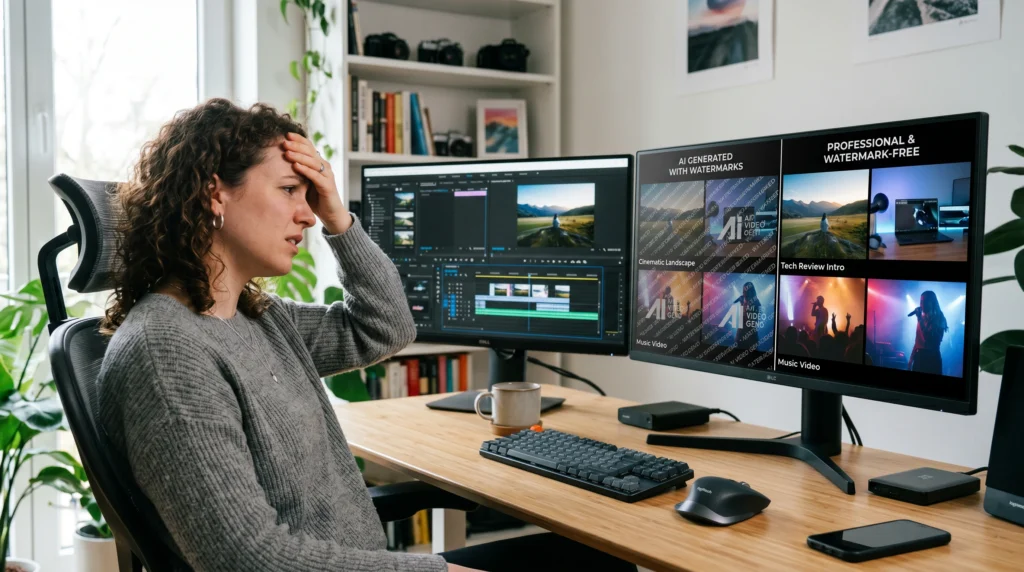
Before the reviews, it’s worth understanding why watermarks are so common in free AI video tools — and why most platforms that claim to be free don’t actually deliver clean exports.
AI video generation is computationally expensive. Platforms spend real money on GPU processing for every video you generate. The watermark model exists because it lets them offer free access while using your content as marketing — every video you share becomes an ad for their platform.
Tools that watermark free exports and are not on this list include: Synthesia, HeyGen, Pictory, Steve AI, InShot (free tier), Veed.io (free tier), and several others. They’re excluded not because they’re bad tools — many are excellent — but because watermarked output isn’t usable for professional or commercial purposes.
The tools below are the ones where the free tier genuinely delivers clean, downloadable, watermark-free video.
1. CapCut — Best Free AI Video Editor (No Watermark, No Limits)

Type: AI-powered video editor
Free plan: Full editing suite, unlimited exports, no watermark
Paid plan: CapCut Pro at $9.99/month
CapCut is the most complete free AI video tool available in 2026. The free plan gives you access to the full editing suite with no watermark on exports, no daily generation caps for core features, and no credit card required to get started.
It’s important to be clear: CapCut is primarily a video editor, not a video generator. It works with footage you already have and uses AI to make editing dramatically faster and more accessible.
Key AI Features (All Free)
AI Auto Captions: Upload any video and CapCut transcribes it and generates animated captions automatically. Accuracy is excellent across English and 20+ languages. This single feature alone saves 2–3 hours per video for content creators.
Background Removal: One-click background removal for video — no green screen required. Works reliably on people, products, and objects. Quality rivals professional tools costing hundreds per month.
Text-to-Speech: Convert any written script into a natural-sounding voiceover in 30+ voices and 15+ languages. This makes it possible to create complete faceless video content from text alone.
Auto-Reframe: Automatically converts horizontal (16:9) footage to vertical (9:16) for social media. One click turns a YouTube video into a TikTok-ready clip with smart subject tracking.
AI Templates: Thousands of trending short-form video templates pre-built for TikTok, Reels, and YouTube Shorts — drop in your footage and export in minutes.
Free Tier Limits
Almost none for core editing features. Some premium effects and templates require payment. Export resolution is capped at 1080p on the free plan — 4K requires CapCut Pro.
Best Use Cases
- Editing YouTube Shorts, TikToks, and Instagram Reels
- Adding auto-captions to any video automatically
- Creating faceless content with text-to-speech
- Repurposing existing footage for multiple platforms
- Marketing videos and product demos
Verdict: The single most useful free AI video tool for anyone working with existing footage. If you’re creating content for social media and you’re not using CapCut, you’re doing more work than necessary. Start here.
2. Runway ML — Best for Generating AI Video From Text Prompts

Type: AI video generation (text-to-video, image-to-video)
Free plan: 125 credits (~25 seconds of generated video, one-time allocation)
Paid plan: From $15/month (Standard, 625 credits/month)
Runway is the leading platform for generating entirely new video from text prompts — not editing existing footage, but creating video from scratch based on a written description. The free tier is limited but gives you genuine access to the underlying technology.
Key Features
Text-to-Video (Gen-3 Alpha Turbo): Describe a scene in text and Runway generates a short video clip. “A coastal lighthouse at sunrise, cinematic drone shot, waves crashing, golden hour lighting” produces a 4–10 second clip that closely matches the prompt. Runway’s latest model (Gen-3 Alpha Turbo, available free) produces noticeably better motion consistency than earlier versions.
Image-to-Video: Upload any still image and Runway animates it — adding motion, camera movement, and life to static visuals. Particularly powerful when combined with AI-generated images from tools like Leonardo AI.
Video-to-Video: Apply a visual style to existing footage. Transform a standard video clip into anime, oil painting, watercolor, or any other visual style using a text prompt.
Multi-Motion Brush: Isolate specific regions of your image and apply different motion directions to each — making a character walk while the background stays still, for example.
Free Tier Reality Check
125 total credits. Each second of generated video costs approximately 5 credits — giving you roughly 25 seconds of total video generation on the free plan. This allocation does not reset monthly; it’s a one-time free trial.
This is enough to evaluate the technology and produce a handful of test clips. It is not enough for regular production use.
Best Use Cases
- Generating short AI video clips for ads or social media
- Animating AI-generated or stock images
- Experimenting with AI video generation before committing to a paid plan
- Creating unique visual backgrounds and ambient loops
Verdict: The best-in-class AI video generator, but the free tier is better for evaluation than production. Plan for the paid plan if you want to use Runway seriously.
3. Pika Labs — Best for Quick Creative AI Video Clips
Type: AI video generation (text-to-video, image-to-video)
Free plan: ~30 video generations/day, no watermark
Paid plan: From $8/month
Pika is faster, more beginner-friendly, and more generous on free limits than Runway. Where Runway focuses on cinematic realism, Pika excels at creative, stylized, and animated outputs — making it the better free choice for social media content creators who need volume over photorealism.
Key Features
Text-to-Video: Generate 3–5 second clips from text prompts. Pika performs especially well for stylized content — animation, fantasy, sci-fi, and artistic visuals come out cleaner than realistic human footage.
Image-to-Video: Animate any still image with natural motion. Upload a product photo and add subtle motion to bring it to life. Upload a portrait and add blinking, breathing, or subtle head movement.
Modify Region: Select a specific part of a video and use a text prompt to change only that area. Add rain to a background, change the color of an object, or add special effects to a specific zone. This is one of Pika’s most unique features among free tools.
Lip Sync: Upload any video and sync the speaker’s lips to new audio. Useful for dubbing, content localization, or correcting audio issues without reshooting.
Sfx (Sound Effects): Generate custom sound effects from text prompts and apply them directly to your video clips.
Free Tier Limits
Approximately 30 generations per day. Video length capped at 5 seconds on free plan. Higher resolution and longer videos require a paid subscription.
Best Use Cases
- Short social media clips and ads
- Animated product showcases
- Creative video art and stylized content
- Dubbing and lip-sync projects
- Fantasy, sci-fi, and animated content
Verdict: The most beginner-friendly AI video generator with genuinely usable free limits. Better daily volume than Runway, slightly lower ceiling for photorealistic quality.
4. Luma Dream Machine — Best for Cinematic Quality AI Video
Type: AI video generation (text-to-video, image-to-video)
Free plan: 30 generations/month, no watermark
Paid plan: From $29.99/month
Luma Dream Machine produces the most cinematically realistic AI video available on a free plan in 2026. While Runway and Pika generate stylized clips, Luma focuses on photorealistic quality — motion physics, natural lighting, and subject coherence that genuinely looks filmed rather than generated.
Key Features
Text-to-Video: Generate 5-second clips with emphasis on physical realism. Luma consistently outperforms competitors on realistic human movement, natural fluid dynamics (water, cloth, hair), and coherent camera motion.
Image-to-Video: Animate still images with physics-accurate motion. A glass tips and spills realistically. Cloth flows naturally in wind. Characters move with genuine gait physics.
Camera Controls: Specify exact camera movements — dolly in, dolly out, crane shot, orbital, zoom, or push — and Luma executes them with cinematic accuracy. This level of camera control is rare among free AI video tools.
Extend Video: Take any generated clip and extend it forward or backward in time, maintaining visual and motion consistency across the extension.
Free Tier Limits
30 generations per month (not per day). Each generation produces a 5-second clip at standard resolution. This is more limited in volume than Pika but higher in quality per generation.
Best Use Cases
- High-quality product showcases and visual campaigns
- Film and production concept visualization
- Portfolio pieces requiring photorealistic quality
- Premium social media content where quality matters more than volume
Verdict: Choose Luma when quality matters more than quantity. 30 generations per month is meaningful if each one is planned and purposeful.
5. Opus Clip — Best for Repurposing Long Videos Into Viral Shorts
Type: AI video repurposing and clip extraction
Free plan: 60 minutes of video processing/month, no watermark
Paid plan: From $19/month
Opus Clip is the most efficient free tool for content repurposing. Upload a long-form video — YouTube video, podcast, webinar, recorded interview — and Opus automatically identifies the most engaging 30–90 second segments, adds captions, reframes for vertical format, and scores each clip for viral potential.
Key Features
AI Clip Selection: Opus analyzes your video for strong hooks, emotional peaks, quotable statements, and high-value moments. It extracts the top clips automatically, ranked by a “virality score” based on engagement signals.
Auto Captions: Styled captions are added automatically in the format used by top short-form creators — animated, highlighted words, professional formatting.
Auto Reframe: Automatically reframes horizontal video to vertical 9:16 format, with intelligent subject tracking to keep the speaker centered throughout.
Virality Score: Each extracted clip is scored for its likelihood to perform well on TikTok, Reels, and YouTube Shorts — helping you prioritize which clips to post.
Multi-Platform Export: Export clips formatted specifically for TikTok, Instagram Reels, YouTube Shorts, LinkedIn, or Twitter in one click.
Free Tier Limits
60 minutes of video processing per month. This covers roughly 3–4 long-form videos per month, which is enough to evaluate the tool and produce real clips.
Best Use Cases
- YouTubers repurposing long videos into Shorts
- Podcasters creating audiogram-style clips for social media
- Course creators clipping highlights from recorded lessons
- Business owners turning webinars into promotional content
💡 Bonus: Pair Opus Clip With vidIQ for Maximum YouTube Growth
If you’re using Opus Clip to create YouTube Shorts from your longer videos, pairing it with vidIQ turns your repurposing strategy into a growth engine. vidIQ’s AI analyzes your channel, identifies which video topics are trending in your niche, and generates daily content ideas with estimated search volume and competition scores.
vidIQ’s AI suite includes Daily Ideas, Title Generator, Thumbnail Generator, Description Writer, and Shorts Creator — tools that cover the full YouTube publishing workflow from ideation to upload.
You use Opus Clip to turn your best content into Shorts. You use vidIQ to know which content to create in the first place — and to optimize every title, thumbnail, and description for maximum reach.
→ Try vidIQ free at vidiq.com/tecdigi (The Pro plan starts at $16.58/month billed annually — and includes the AI Daily Ideas tool, which alone justifies the cost for any creator publishing more than 2 videos per week.)
Verdict: The best free tool for content repurposing. If you’re producing long-form content and not turning it into Shorts, you’re leaving reach on the table.
6. InVideo AI — Best for Creating Full Videos From Scripts
Type: Script-to-video generation
Free plan: 4 video exports/week, watermark removed on download
Paid plan: From $20/month (Plus)
InVideo AI takes a different approach to video creation: you provide a text script or topic, and it generates a complete video — footage, voiceover, captions, music, and transitions — in a few minutes. It’s the closest thing to a one-prompt-to-finished-video tool that actually works.
Key Features
Script-to-Video: Enter any topic or paste a script and InVideo generates a complete video with relevant stock footage, a voiceover, background music, captions, and scene transitions. Useful for explainer videos, news summaries, product overviews, and marketing content.
AI Voiceover: 50+ realistic AI voices in multiple languages. Male, female, neutral; different accents and tones. Quality is professional enough for marketing use.
Stock Library: Access to 16 million+ stock footage clips, images, and music tracks integrated directly into the editor.
Brand Kit: Add your logo, colors, and fonts to templates so every video stays on brand automatically.
Social Media Templates: Pre-built templates sized and formatted for YouTube, TikTok, Instagram Reels, Facebook, and LinkedIn.
Free Tier Limits
4 video exports per week. Watermark is applied during editing but removed on final export — this is what qualifies it for this list. The output you download is clean.
Best Use Cases
- Creating YouTube explainer videos quickly
- Producing marketing videos without a film crew
- News summary and current events content
- Product or service overview videos
- Content creators who want full video from a script
Verdict: The most complete free “script-to-finished-video” tool available. The 4 exports/week limit is workable for solo creators. The AI voiceover quality is strong enough for professional use.
7. Canva Video — Best for Beginners and Visual Presentations
Type: Template-based video creation with AI features
Free plan: Thousands of templates, basic AI features, no watermark
Paid plan: Canva Pro at $15/month
Canva needs no introduction for most creators — but its video capabilities are often underestimated. The free plan includes a full video editor with AI-powered features, thousands of templates for every format and platform, and clean watermark-free exports.
Key Features
Video Templates: Thousands of animated templates for every platform — YouTube intros, TikTok videos, presentation videos, ads, tutorials, and social content.
Magic Write (AI Text): Generate text for your video scripts, captions, and on-screen text using AI. Works inside the design editor without switching tools.
Text-to-Image: Generate custom AI images to use as backgrounds, illustrations, or visual elements in your videos — without leaving Canva.
Background Remover: Remove backgrounds from images used in your videos. (Note: background removal for video footage requires Canva Pro.)
Transitions and Animations: One-click animated transitions and element animations to make your videos feel professional without video editing experience.
Brand Kit (Limited): Set basic brand colors and fonts on the free plan.
Free Tier Limits
Most core features are available free. Some premium templates, the brand kit, and advanced AI features require Canva Pro. Background removal for video (vs. still images) is a paid feature.
Best Use Cases
- YouTube intros and outros
- Presentation videos and pitch decks
- Social media graphics that include video elements
- Marketing and promotional videos for non-designers
- Beginners who find dedicated video editors overwhelming
Verdict: The easiest starting point for beginners who need professional-looking videos without a learning curve. Not the most powerful tool on this list, but the most accessible.
Which Tool Should You Use? (By Use Case)
| Your Goal | Best Free Tool |
|---|---|
| Edit footage for TikTok/Reels/Shorts | CapCut |
| Generate new video from a text prompt | Runway ML or Pika Labs |
| Maximum cinematic quality | Luma Dream Machine |
| Turn long videos into viral clips | Opus Clip |
| Create full videos from a script | InVideo AI |
| Quick, beginner-friendly videos | Canva Video |
| Grow a YouTube channel with AI | Opus Clip + vidIQ |
How to Make Money With Free AI Video Tools in 2026

The tools above aren’t just for personal projects. Here are the most realistic ways creators are monetizing free AI video tools right now:
1. YouTube Shorts monetization Use CapCut + Opus Clip to produce daily YouTube Shorts from AI-generated or repurposed content. YouTube’s Shorts monetization program pays per 1,000 views. Creators publishing 5–7 Shorts per week report $200–$800/month once they reach the monetization threshold.
2. Freelance video editing services CapCut’s free plan is powerful enough to offer professional video editing services on Fiverr or Upwork. Services like “Add captions to your video,” “Edit your podcast into social clips,” or “Create a 60-second promo video” are in consistent demand.
3. Faceless YouTube channels Use InVideo AI to generate scripts and video, CapCut to add captions and polish, and optimize every upload with vidIQ’s keyword research and title tools. Faceless channels in niches like finance, AI tools, health, and productivity regularly grow to monetization thresholds within 6–12 months.
4. Social media management for local businesses Small businesses need video content for social media but don’t have the time or skills to produce it. Offering a monthly social media video package (5–10 short videos) using CapCut and Canva Video is a viable freelance service at $300–$800/month per client.
🎯 The YouTube Growth Stack We Recommend
If your goal is growing a YouTube channel — whether long-form, Shorts, or both — here’s the exact free-to-affordable stack we’d use:
- CapCut (free) → editing and captions
- Opus Clip (free, 60 min/month) → repurposing long content into Shorts
- vidIQ → keyword research, title optimization, AI content ideas, thumbnail generation
vidIQ’s AI Daily Ideas tool analyzes your channel’s existing content, audience demographics, trending topics in your niche, and competitor gaps, then generates personalized video ideas with suggested titles, estimated search volume, competition scores, and content outlines every single day.
For any creator publishing more than 2 videos per week, this kind of data-driven ideation is the difference between guessing what to make and knowing what’s going to perform.
→ Start with vidIQ free at vidiq.com/tecdigi — the free plan includes the browser extension with real-time YouTube SEO data. Upgrade to Pro when you’re ready for the full AI suite.
Frequently Asked Questions
What is the best free AI video generator without a watermark in 2026? CapCut is the best free AI video editor without a watermark — it offers unlimited exports on the free plan with no watermark, no credit card required, and a full AI-powered editing suite. For AI video generation (creating new video from text prompts), Pika Labs offers the most generous free tier with approximately 30 watermark-free generations per day.
Are there any truly free AI video generators with no watermark? Yes. CapCut, Pika Labs, Luma Dream Machine, Runway ML, Opus Clip, InVideo AI, and Canva Video all offer watermark-free exports on their free plans. Each has different limits — daily generation caps, monthly processing minutes, or export counts — but all deliver clean, downloadable video without a watermark.
What is the difference between AI video generation and AI video editing? AI video generation creates entirely new video from text prompts or images (Runway, Pika, Luma). AI video editing enhances, edits, or repurposes existing footage using AI features like auto-captions, background removal, or clip extraction (CapCut, Opus Clip). Most creators need both types of tools.
Can I use free AI video tools for commercial purposes? It depends on each platform’s terms of service. CapCut, Pika Labs, and Runway ML allow commercial use of content generated or edited on their free plans, subject to their terms. Always check the specific platform’s Terms of Service and content licensing policy before using free-tier outputs commercially.
How do I remove watermarks from AI videos for free? The tools on this list don’t add watermarks in the first place — no removal needed. If you’re using a tool that watermarks free exports (like Synthesia or HeyGen), the only legitimate options are upgrading to a paid plan, switching to one of the tools above, or using the platform’s “share to remove watermark” feature if available.
Which free AI video tool is best for YouTube Shorts? CapCut is the best free tool specifically for creating YouTube Shorts. It auto-reframes horizontal footage to vertical, adds captions automatically, and includes hundreds of Shorts-specific templates. Opus Clip is the best option if you want to automatically extract the best 30–60 second clips from a longer YouTube video.
Is vidIQ free for YouTube creators? Yes, vidIQ has a free plan that includes the browser extension with real-time SEO data, video scorecards, and limited keyword research. The paid plan unlocks advanced features like in-depth keyword research, competitor analysis, and AI-powered content suggestions — starting at $16.58/month billed annually. Try it free at vidiq.com/tecdigi.
Final Verdict
The best free AI video tools in 2026 are genuinely capable — not stripped-down trials, but real tools that produce professional output on a $0 budget.
Start with this stack:
- CapCut for everyday video editing and social content
- Pika Labs for experimenting with AI video generation
- Opus Clip for turning any long-form content into Shorts
Add vidIQ (vidiq.com/tecdigi) when you’re serious about growing on YouTube — its AI tools for keyword research, title optimization, and daily content ideas work directly alongside your video creation workflow.
The creators winning on YouTube and social media in 2026 aren’t spending more — they’re stacking the right free tools intelligently and using data to make better decisions about what to create.
At TecDigi, every tool on this list was personally tested. No platform paid to appear in this review.
For a deeper dive on the top pick from this list, read our full InVideo AI review — or see our complete free AI tools rankings for every other category.
This article contains affiliate links. If you purchase through our vidIQ link (vidiq.com/tecdigi), we may earn a commission at no extra cost to you. This does not influence our rankings or reviews.
Related guides:
- The Complete Guide to Free AI Tools in 2026 (Pillar)
- Best Free AI Writing Tools for Bloggers in 2026
- Free AI Image Generators With No Watermark in 2026
- Free AI Tools That Pay You Money in 2026
- AI Side Hustles That Actually Make Money in 2026
- “YouTube Shorts” → Best Free AI Tools for Social Media
- “faceless YouTube channels” → How to Make Money with ChatGPT for Free
- “freelance video editing” → Best Free AI Tools for Freelancers
- “AI image generators” → Free AI Image Generator No Watermark 2026
- see our complete free AI tools rankings